> For the complete documentation index, see [llms.txt](https://docs.nftbutler.io/nft-butler/llms.txt). Markdown versions of documentation pages are available by appending `.md` to page URLs; this page is available as [Markdown](https://docs.nftbutler.io/nft-butler/features/satflow-token-bidding.md).

# Satflow Token Bidding

## Features

* [x] Token Bidding
* [x] Looping & Outbidding competition
* [x] Relativ Bidding to floor price or fixed BTC bidding
* [x] Listed assets filtering
* [x] Trait Floor price protection
* [x] Floor price protection
* [x] Dedicated Ordinal task slots (up to 2 running tasks)
* [x] Up to 2000 bids / hour (using both slots)
* [x] BTC Transaction Fees protection
* [x] Auto-Cancel when hitting floor caps
* [x] Cancelling all active token bids
* [x] Unlimited active token bids

<figure><img src="/files/RCAbmbnIXQPb2zRhpYMb" alt=""><figcaption><p>Creatin an Ordinals Token Bidding task. When hitting "Fetch Data" collection stats will be fetched</p></figcaption></figure>

## Requirements to run Satflow token bidding tasks

{% hint style="info" %}
In order to create and run Ordinal Bidding task each User will need a base level Butler access ([Subscription or Lifetime NFT](/nft-butler/nft-butler/getting-started/get-access.md)) as well as the [PRO Access](/nft-butler/products-and-services/pro-access.md) on top.
{% endhint %}

## How does it work?

Bidding on Ordinal assets through Satflow is very similar to bidding on Opensea. Here are the most important notes:

* You can have as many active bids as you want on each wallet
* Token bids do not have an expiration time on Satflow
* Expiration time is only used to time your cycles re-processing your token tasks
* Butler will automatically cancel token bids if your task hits asset limits or collection FP limits on their next cycle
* Token bids are automatically refreshed when re-bidding (only 1 active bid per asset)
* We set a maximum of 1000 token bids per bidding task
* Assets can be filtered by trait and listing state on each token task
* Collection bids can be ignored for outbidding on token tasks
* Minimum bid amount is 10'000 sats on token bids (0.0001 BTC)
* An additional \~600 sats will be used as transaction fees as part of the bid.
* Satflow takes 1000 sats as fees on every transaction but it's part of your bid and not on top.

{% hint style="info" %}
Make sure to double check your active token bids if you stop a token bidding task since your **token bids do not expire**.
{% endhint %}

## Add BTC Wallet to NFT Butler

{% hint style="info" %}
In Order to run Ordinal Bidding Tasks you'll first have to [add a Bitcoin Wallet](/nft-butler/nft-butler/getting-started/add-bitcoin-wallet-ordinals.md) to your Butler which will be used to run your bids.

Your private key will be kept save, strongly encrypted on your Butler app only. It will never be shared or sent anywhere. It's only used locally to sign your bids.
{% endhint %}

## Create Ordinal Bidding Task

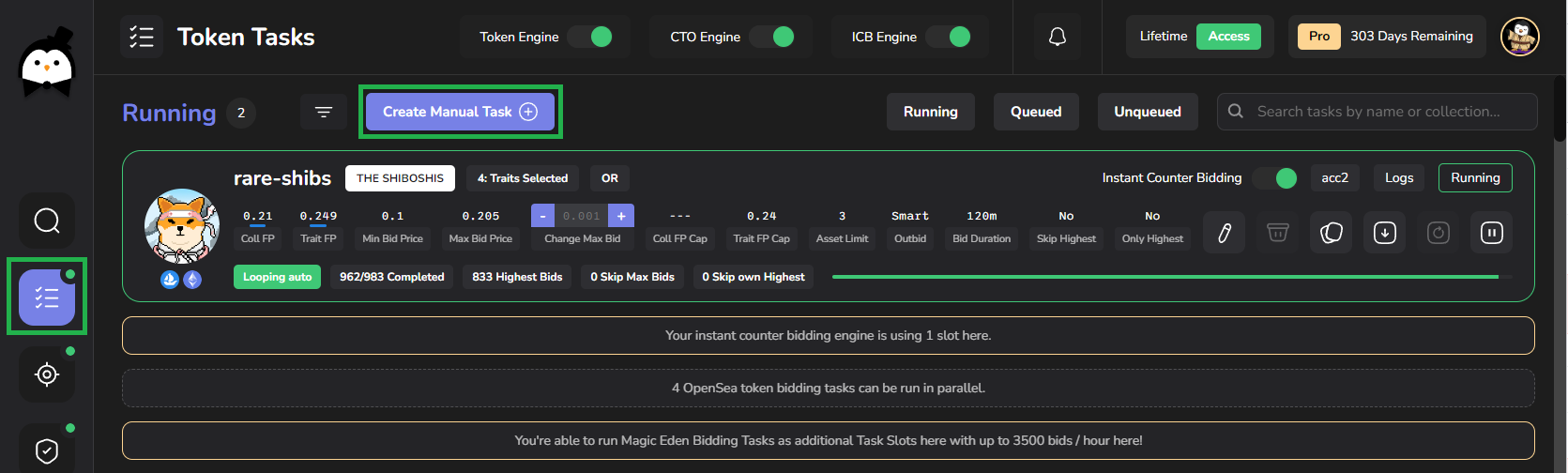
Ordinal bidding tasks need to be created as Manual Task for now. Head to the Token Task page and hit the "Create Manual Task" Button:

<figure><img src="/files/N5HtS4tUSLKkQJh1akmb" alt=""><figcaption><p>Create Manual Token Bidding Task</p></figcaption></figure>

### Marketplace & Blockchain

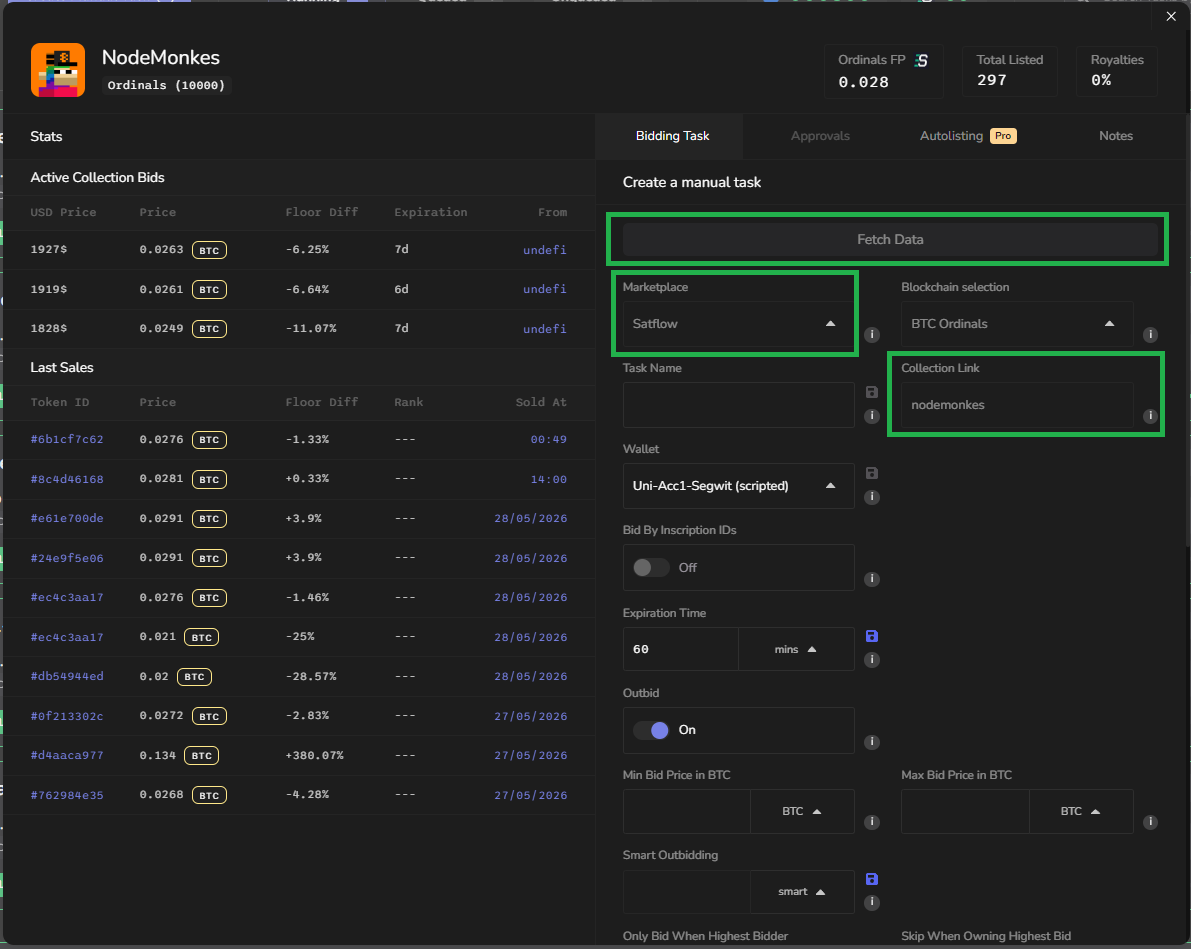
With the required PRO Access you can now switch the Marketplace to **Satflow** and the target Blockchain to **BTC Ordinals**:

<figure><img src="/files/L0Hs05YYx9pwvcL6rrDQ" alt=""><figcaption><p>Switch Market and Blockchain</p></figcaption></figure>

### Ordinals Collection and Task Name

Choose a name for your task and copy & past the Ordinals collection link from Satflow to the field on the right. Example:

{% embed url="<https://www.satflow.com/ordinals/nodemonkes>" %}

<figure><img src="/files/24DMjhmQKQ4D5F4FlFow" alt=""><figcaption><p>Creating a Token Task on NodeMonkes by using the collection link on Satflow and Fetch Data</p></figcaption></figure>

{% hint style="info" %}
Use "Fetch Data" on top to make Butler double check if the collection exists and to fetch the collection stats  such as floor price, which will help to calculate relative bid prices later on.
{% endhint %}

### Bidding Wallets

Now choose your BTC wallet to process your bids:

<figure><img src="/files/U7rEp9FZL2rlHdc55cmp" alt=""><figcaption></figcaption></figure>

### Optinal: Bid on inscription ids

Instead of bidding on all assets of a collection by trait or their listing state you can manually choose your targets by providing a list of inscription ids.

<figure><img src="/files/Onnu9OeYHPU1Gi9cnOs5" alt=""><figcaption></figcaption></figure>

### Outbidding Strategy

You can bid with a fixed bid price or  you can use "Outbid" to define a minimum and maximum price range. Butler will automatically outbid your competition in this range.

{% hint style="info" %}
You can also choose between bidding in fixed BTC or bidding relative to the current collection floor price. So for example 30% to 20% below the current collection floor price. Relative bids will always require to set a "Hardcap bid price" in BTC as as fixed max bid price in BTC, to protect from fast moving floor prices.&#x20;
{% endhint %}

<figure><img src="/files/EWLSriDYg4tALFDUyHmE" alt=""><figcaption><p>Bidding 0.12 BTC as fixed bid price</p></figcaption></figure>

<figure><img src="/files/IFTq59dMbAc8T4HXjd1A" alt=""><figcaption><p>Bidding in fixed BTC between 0.09 and 0.12 BTC</p></figcaption></figure>

<figure><img src="/files/2iZ5LaaDdE7jlBD4a7hv" alt=""><figcaption><p>Outbidding relative to the collection floor price with a fixed hardcap bid price at 0.115 BTC</p></figcaption></figure>

### Outbidding steps and Expiration Time

The next section is about Outbidding steps (when outbidding is enabled) and the Expiration Time of the bids.

For Outbidding several options are available:

* BTC: Outbid your competition in fixed BTC steps (Example: 0.000001 BTC)
* %: Outbid your competition in percentage steps (Example: 1% increments)&#x20;
* Smart: Outbid your competition in 9 different steps from your min to your max bid price. This is designed to save outbidding iteration and push the compeition out by reaching their max bid price where outbidding wars are finally won.

The Expiration Time of the bid can be defined in mins, hours, days and weeks. We do have a special case here since **token bids do not expire on Satflow**, however we use the Expiration time by default as a countdown to re-process your token bidding tasks.

<figure><img src="/files/wAD7hb4hLPMkAhfaIWXv" alt=""><figcaption><p>Outbidding with an Expiration Time of 30min</p></figcaption></figure>

<figure><img src="/files/fw6lnft4i9V1eo4LxdEz" alt=""><figcaption><p>Outbidding competitor's bids with 0.0001 BTC</p></figcaption></figure>

### Optional: Trait Filter

With the **Add Trait Filter** toggle button you can enable filtering for a selected trait. It requires to fetch Ordinals Collection Data first and it will then provide Dropdowns to choose the Trait Type and Trait Value filter for your Bidding Task:

<figure><img src="/files/lPNbaiwSzPgIrsdP29ZS" alt=""><figcaption><p>Adding Trait Filter for Ordinal Token Bidding Task</p></figcaption></figure>

### Optinal: Only bid on listed Assets

With this additional toggle button you can choose if listed assets should be targeted only, or all of the assets matching your trait selection.

{% hint style="info" %}
If you're bidding on listed assets only and hitting collection FP limits, there can be some edge cases where your (old) bids stay active and will not be auto cancelled. Please double check your active bids from time to time or use the "Cancel all bids" option on your BTC Wallet Details if you're stopping a bidding task.
{% endhint %}

### Optional: Maxmium number of Bids

The toggle button **Maximum # bids** can be used if you want to control the maximum number of bids.

<figure><img src="/files/mTExprfS90puzHXB9qxa" alt=""><figcaption><p>Task is fixed to process bids on the top 20 listed assets</p></figcaption></figure>

### Optional: Bidding Target Offset

The toggle button **Bidding Target Offset** can be used if you want to set an offset of assets from floor to start bidding, you can do this here. So for example if you want to skip the first 20 assets for bidding you would set this option to 20.

{% hint style="info" %}
By default token tasks will bid in the same order as assets are listed on Satflow. Starting with the cheapest listing. Once all listed assets were targeted it will move on to non-listed assets (if selected).
{% endhint %}

<figure><img src="/files/Hv1ackrPvIGHLmE0toM3" alt=""><figcaption><p>First 20 listings will be skipped to place your bids</p></figcaption></figure>

### Optional: Floor price cap

The **Floor price cap** is an important safety feature. If you set the **Min floor price** the task will automatically stop processing and looping once the Collection floor price (cheapest listing) drops below this value.

{% hint style="info" %}
You can only set the Min floor price if you dont want to define a maximum.

We always recommend to set this setting as safety feature. You never know how floor prices move while sleeping.

Already active bids will stay active until the task is re-processed and it will then auto-cancel still active token bids on it's next bidding cycle. 1 by 1 in order of bidding targets.
{% endhint %}

<figure><img src="/files/MxOFMgzt8jKpaGv2tcrt" alt=""><figcaption><p>Floor price protection set at 0.003 BTC</p></figcaption></figure>

### Optinal: Trait Floor price cap

On top you can also protect your bidding task from dropping trait floor prices. Works the same as collection FP protection. Once the cheapest listing of a trait drops below the "Min floor price" value it will stop bidding and instead cancel your active token bids.

<figure><img src="/files/2uh5O089utbZlTsPv0HP" alt=""><figcaption></figcaption></figure>

### Optinal: Ignore collection bids

The following switch can be enabled to ignore collection bids when outbidding.

{% hint style="info" %}
If you don't want to compete with collection bids this option will make sure to only outbid other token bids (useful in some rare edge cases).
{% endhint %}

<figure><img src="/files/1LEvdIVVjuVrlzVbCVvM" alt=""><figcaption><p>Ignoring collection bids when outbidding ordinal assets</p></figcaption></figure>

### Task Looping

The looping feature is a very core component of NFT Butler. It basically defines how the task should be reprocessed after it finishes it's bidding jobs.

By Default it's set to "Forever" and "Auto" which means the task will repeat forever and automatically restart when the Expiration time config of the task has been reached.

There are also other options available:

* **Limited looping**: You can set a fixed number here to make the task loop X times (Example: 5) before it ends
* **Custom time:** This setting defines a fixed countdown when the task should restart after it ended. Example 1 min: Will make it start again after 1 minute when it finished)
* **Offset time:** This option is a relative offset to the first bid expiring in the previous cycle. If you set to 5 min it would start 5 minutes before the first bid expires

{% hint style="info" %}
The looping settings can be used to make your most important bidding tasks loop more often and therefore outbid your competition more frequently on competitive collections.

Keep in mind it will also occupy your Ordinals Task slot more often which takes room from other tasks to be running. And you might run into max active bids per wallet issues if using this very aggresive.
{% endhint %}

<figure><img src="/files/U2lKwzZ3B5S3HrWPojAD" alt=""><figcaption><p>Default settings: Looping automatically when the expiration time is reached.</p></figcaption></figure>

<figure><img src="/files/c5JVPJHNEREPWpR1cok2" alt=""><figcaption><p>Brut Force a task to loop every 10min after it finished.</p></figcaption></figure>

## Play Task

The last option is just a quick toggle if you want to start the task immediately after creation. It's the same as just hitting the play button in the Task list once it got created.

<figure><img src="/files/rhGArQNqdqehIJ6L5Jpg" alt=""><figcaption><p>Immediately start the task after creation</p></figcaption></figure>

{% hint style="info" %}
To play your freshly created Ordinals Bidding task make sure to Enable your **Token Engine** and play your Ordinals task. It will use a dedicated Task slots for Satflow Tasks and once it finishes it will automatically pull the next Ordinals task from the "**Queued**" section.
{% endhint %}

<figure><img src="/files/gJjyziU97b5Mw3eX0GY4" alt=""><figcaption><p>Token Engine started and Ordinals task playing</p></figcaption></figure>

## Cancel all active Token bids

As already mentioned token bids on Satflow **do not expire by default**. Now in order to cancel all active token bids after stopping a token bidding task you have two options:

1\) Cancel them directly on Satflow on your Accounts **Portfolio ->** **Offers made -> Cancel All**:

<figure><img src="/files/cftpZ3lUPZh0JtTYxC04" alt=""><figcaption></figcaption></figure>

2\) Or directly from the NFT Butler App on your Dashboard go to your BTC Wallet -> Details -> Cancel All Bids:

<figure><img src="/files/gEh8hkDdstHy3EcvIZPX" alt=""><figcaption></figcaption></figure>

{% hint style="info" %}
Satflow treats your bids as originating from your Ordinals receive address. So the Ordinals Receive Address WIF has to be added to be able to cancel those bids from the Butler app.
{% endhint %}


---

# Agent Instructions
This documentation is published with GitBook. GitBook is the documentation platform designed so that both humans and AI agents can read, navigate, and reason over technical content effectively. Learn more at gitbook.com.

## Querying This Documentation
If you need additional information that is not directly available in this page, you can query the documentation dynamically by asking a question.

Perform an HTTP GET request on the current page URL with the `ask` query parameter:

```
GET https://docs.nftbutler.io/nft-butler/features/satflow-token-bidding.md?ask=<question>
```

The question should be specific, self-contained, and written in natural language.
The response will contain a direct answer to the question and relevant excerpts and sources from the documentation.

Use this mechanism when the answer is not explicitly present in the current page, you need clarification or additional context, or you want to retrieve related documentation sections.